
One URL,
a QR code that fits your design
Enter an address and the QR code lands on your canvas. Style its shape, color, and logo to match.

Enter it, style it, place it
Enter a URL and your QR code is ready
Paste the address you want to link and a preview appears right away. Click Apply and the QR code lands on the canvas, where you can resize and move it like any other element.
Shapes, colors, and logos to match your brand
Swap the square default for rounded or dotted shapes and add your brand color. Put a logo in the middle so people know it is yours at a glance.
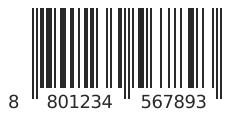
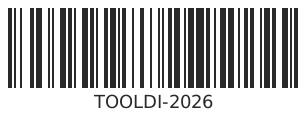
Product barcodes, in the same place
Pick EAN-8, EAN-13, UPC, or CODE128, enter the numbers or text, and your barcode is generated. Bar height and text size are adjustable too.
Made to be easy
Transparent background
Make the background transparent so it sits naturally on photos and colored backgrounds.
Add your logo
Pick a built-in icon like KakaoTalk, Instagram, or YouTube, or upload your own logo from My Files to place in the center.
Edit again
Select a QR code or barcode on the canvas and click Edit to change its content and style anytime.
Scan-friendly hints
When a color, shape, or logo may lower scan reliability, the editor lets you know, so you can style it within safe limits.
Ready for print
Add QR codes to business cards, flyers, and posters, then order prints right in Tooldi.
On mobile too
Create and edit QR codes and barcodes the same way in the mobile editor.
Frequently asked questions
Make your QR code now
Just enter an address. Put it on business cards, posters, or flyers.